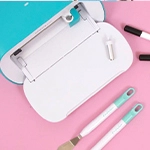
Tutorial about the Silhouette Cameo, everything you need to know about the most famous cutting tool in the world of crafts and scrapbooking.
Hello everyone! It’s one of the most common questions, what is the Silhouette Cameo?
The Silhouette Cameo
First, and for those who do not know it yet, Cameo is the best cutting tool on the market. It allows you to cut any custom design: letters, words, images and all kinds of designs. The .studio files can be purchased in their online store or downloaded from free pages.
We can say that it works like a printer, but not only that, because it also cuts! We simply plug the machine into the computer and work with it just like we'd do with a normal printer. The design program is compatible with both MAC and PC.
What are the differences between the Cameo and the Portrait?
There are two machines within the Silhouette America range, the only difference between them is the cutting width that each one allows us. In the case of the Cameo 4, it's of 30 cm. and in the case of its "little sister", the Portrait machine, is 20.32 cm of width. We should remark that this in no way limits in the length of our projects, only the width of the material that we can introduce on the machines.
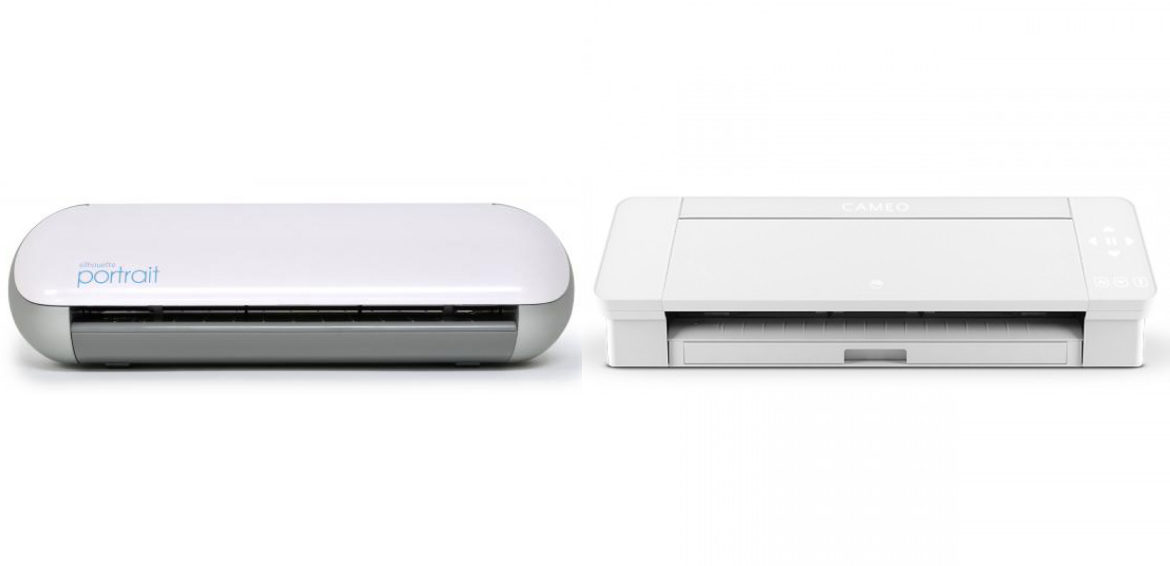
If you don't know which one to buy, think about what projects you'd like to do with them. If you want this tool just to create personalized details, don’t hesitate and go for the Portrait, if you don’t have very clear what you’ll need or if you want to make larger designs, don’t be limited by a narrow width and choose the Cameo.
What materials can I cut?
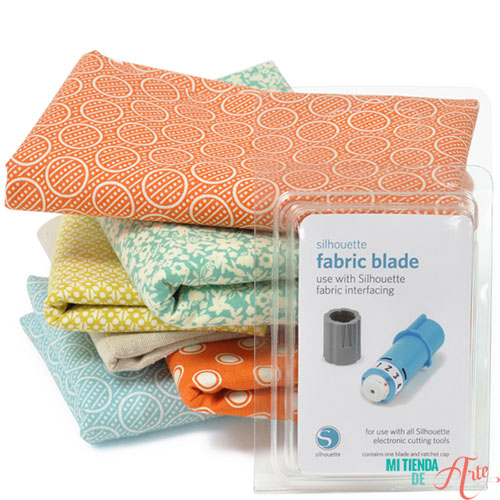
The best thing about this plotter is the amount of materials you can die-cut: paper, cardboard, vinyl, fabric transfer, stencil acetate, fabric... Moreover, with the Cameo 4, we have the possibility to cut materials up to 3 mm of thickness thanks to the deep cutting blade, while the Portrait 2 only cuts up to 2 mm. However, we must also take into account the material density, e.g. fine metals or acetate, which are denser, so the blade may not be able to cut them.
Certain abrasive materials, such as sandpaper or chipboard, can damage our blade.
With the new Cameo 4, you can purchase a special Rotating Blade for cutting fabrics such as cotton, wool, leather or many more fabrics without using a stabilizer.
What designs can I cut with the Silhouette?
To cut a design, you must do it from the Silhouette Studio program. There you can draw any shape, from the simplest to the most complex ones. Besides, you’ll also find the option "text", so you can create any names, letters or phrases.
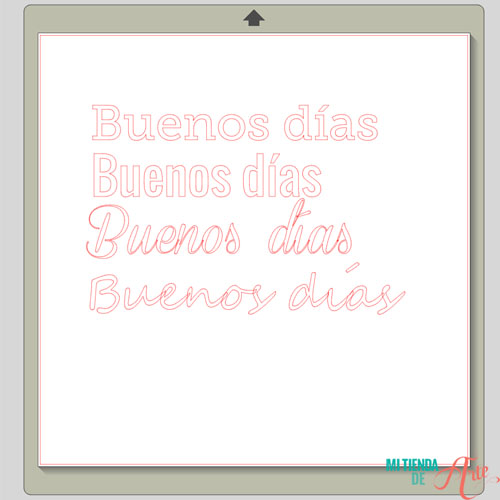
TIP: The text option will display all the fonts you have previously installed on your computer. The more you have, the more fonts you’ll be able to use with your Cameo. You can find several free pages on the Internet where you can download many different fonts. Just download them and install them in the "fonts" folder of your computer. They'll automatically appear ready to use in your Silhouette Studio.
The machine includes 100 official designs and a free one-month subscription to the Silhouette online shop. You can go to the shop from the official site to download the designs you like or need, but you can also find other free design pages.
Another option is to "trace" any other image or photograph you have. In some of them, it can be a bit complicated to trace the cutting area, but it is very easy in solid background images (all those in black and white, for example). We can open any image in .jpg and trace it, so we can cut everything we can imagine!
In Pinterest boards like ours, you can find many easy ideas to cut with your tool.
What else can I do with my Cameo?
To explain all the possibilities we’d need another post for that, but we want to remark the vinyl projects, because they’re incredible. You can create many custom designs for your t-shirts and acetate scrapbooking templates.
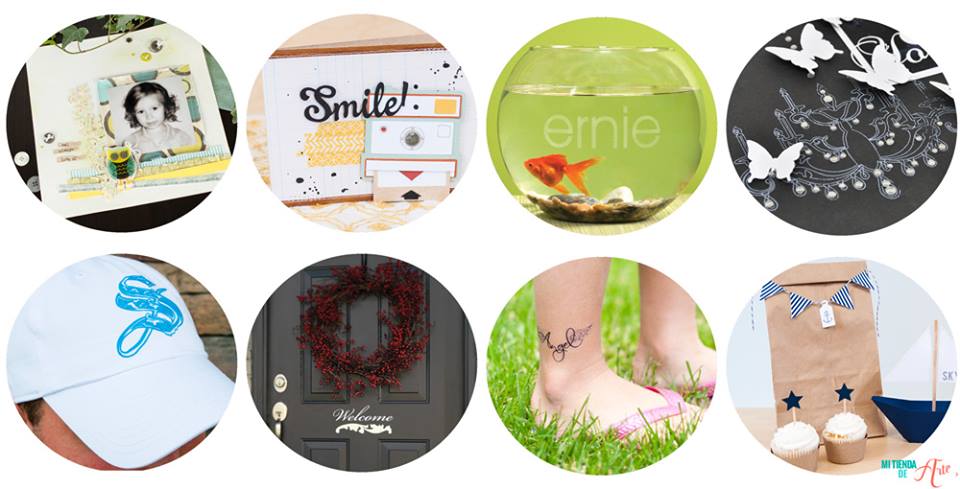
We also have a "print and cut" option. We can print our images with any printer and then cut the drawings. It’s ideal for creating fun and unique custom stickers.
Silhouette Cameo 4
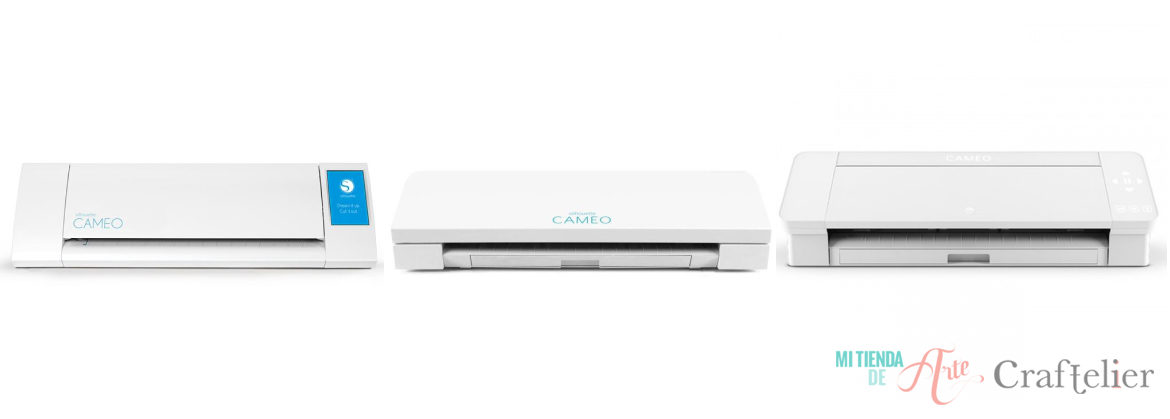
You know there are versions prior to the Cameo 4, that's why this post is constantly being updated. Thus, the Cameo 4 has a higher cutting force than its predecessors (up to 5 kg! let's remember that the Cameo 3 had a cutting force of 210 gr.) The depth of its cut is 3mm (compared to the 2 mm reached by the Cameo 3 or 0.8 mm of the Cameo 2).
This model uses USB and Bluetooth connections, touch screen and includes adapters so you can use all the accessories that were compatible with previous models.
It also includes a new function that automatically detects the tools you have inserted into your machine, ensuring that it is always set up correctly, so the Cameo 4 is easier and faster to use.
Below is a picture of the evolution of the Shilouette Cameo over the years, from model 2 to model 4, which came out in September 2019.
We hope we’ve solved all your doubts with this post, but if you have any other questions or are undecided about the use you can give to the machine, do not hesitate to ask us in the comments.
You can also visit our shop and check the features of the Silhouette Cameo 4, Silhouette Portrait 2, transferable for fabric, all the range of vinyl and the material to create stamps.
In nexts posts, we’ll explain you little by little how this tool works so you can take advantage of it :)